> ## Documentation Index
> Fetch the complete documentation index at: https://docs.tamlr.com/llms.txt
> Use this file to discover all available pages before exploring further.
# Settings, team, and connections
# Manage settings, team members, and CMS connections
Settings controls the company profile, team access, personal account details, appearance, CMS connections, and help resources.
 ## Use cases
* Update company name, location, industry, website, and brand tags.
* Invite team members.
* Change member roles.
* Update your profile.
* Switch theme appearance.
* Connect WordPress, Webflow, or HubSpot for publishing.
* Find help resources.
## Company settings
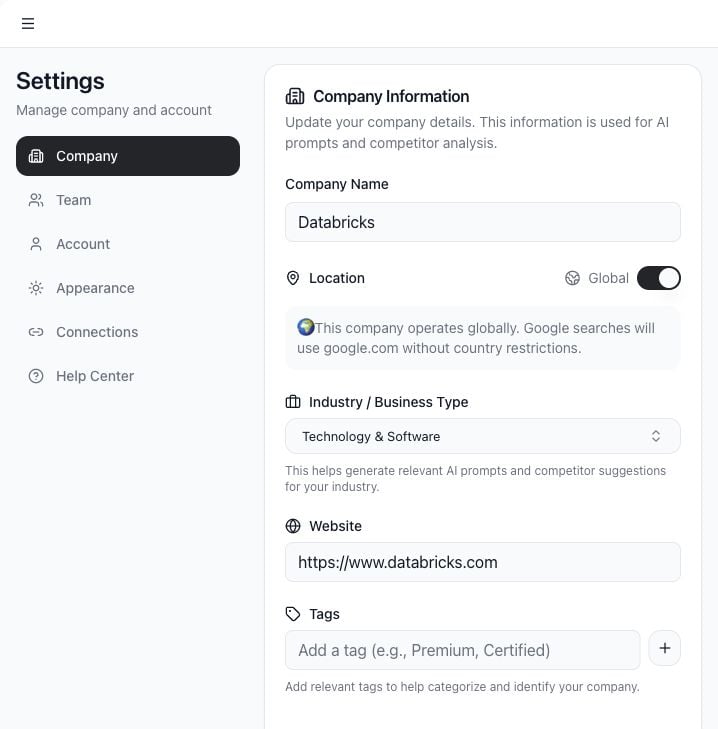
Use **Company** to update business details. These fields influence prompt generation, competitor suggestions, AI context, and search location behavior.
Important fields:
* **Company Name**: the name Tamlr searches for in AI answers.
* **Location**: used for location-aware prompts and search checks.
* **Global**: use this when the company should not be tied to one country.
* **Industry**: helps Tamlr generate relevant prompts and competitor ideas.
* **Website**: used for source classification and product discovery.
* **OEM or brand tags**: optional context for industry-specific analysis.
## Team settings
## Use cases
* Update company name, location, industry, website, and brand tags.
* Invite team members.
* Change member roles.
* Update your profile.
* Switch theme appearance.
* Connect WordPress, Webflow, or HubSpot for publishing.
* Find help resources.
## Company settings
Use **Company** to update business details. These fields influence prompt generation, competitor suggestions, AI context, and search location behavior.
Important fields:
* **Company Name**: the name Tamlr searches for in AI answers.
* **Location**: used for location-aware prompts and search checks.
* **Global**: use this when the company should not be tied to one country.
* **Industry**: helps Tamlr generate relevant prompts and competitor ideas.
* **Website**: used for source classification and product discovery.
* **OEM or brand tags**: optional context for industry-specific analysis.
## Team settings
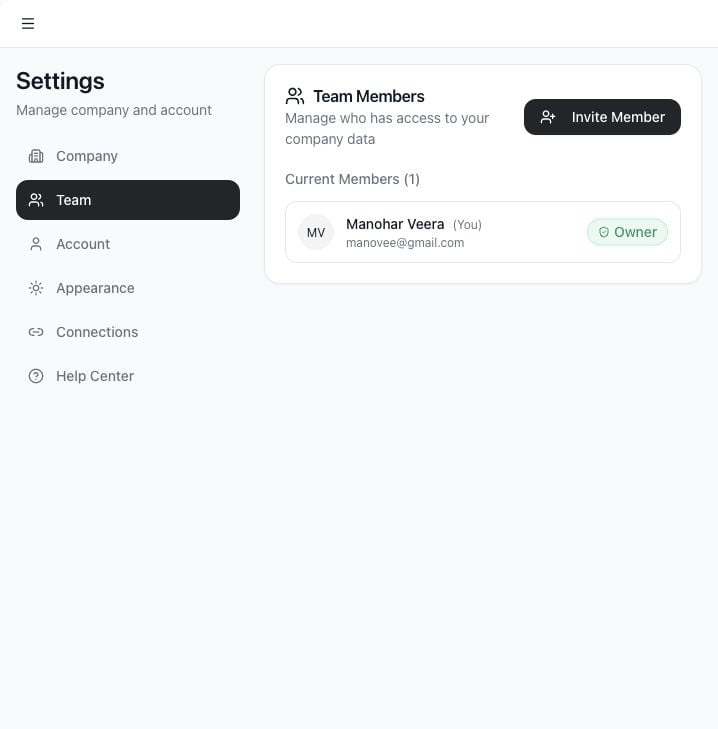 Use **Team** to manage workspace members and pending invites.
Admins can:
* Invite new members.
* Cancel pending invites.
* Extend an invite by resending it.
* Remove team members.
* Change member roles.
Owners cannot demote themselves directly. Transfer ownership first if ownership needs to change.
## Account settings
Use **Account** to update your profile details and sign out.
## Appearance
Use **Appearance** to change the app theme.
## CMS connections
Use **Team** to manage workspace members and pending invites.
Admins can:
* Invite new members.
* Cancel pending invites.
* Extend an invite by resending it.
* Remove team members.
* Change member roles.
Owners cannot demote themselves directly. Transfer ownership first if ownership needs to change.
## Account settings
Use **Account** to update your profile details and sign out.
## Appearance
Use **Appearance** to change the app theme.
## CMS connections
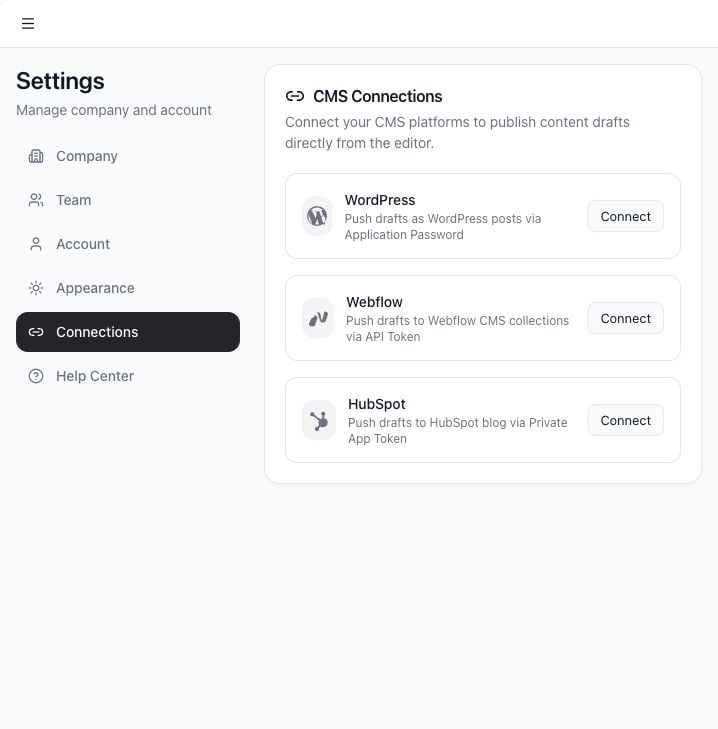 Use **Connections** to connect external CMS platforms:
* WordPress via site URL, username, and application password.
* Webflow via API token, site ID, and collection ID.
* HubSpot via private app token.
Always test a connection before saving it. Saved connections are used when publishing content drafts from the editor.
## Help Center
Use **Connections** to connect external CMS platforms:
* WordPress via site URL, username, and application password.
* Webflow via API token, site ID, and collection ID.
* HubSpot via private app token.
Always test a connection before saving it. Saved connections are used when publishing content drafts from the editor.
## Help Center
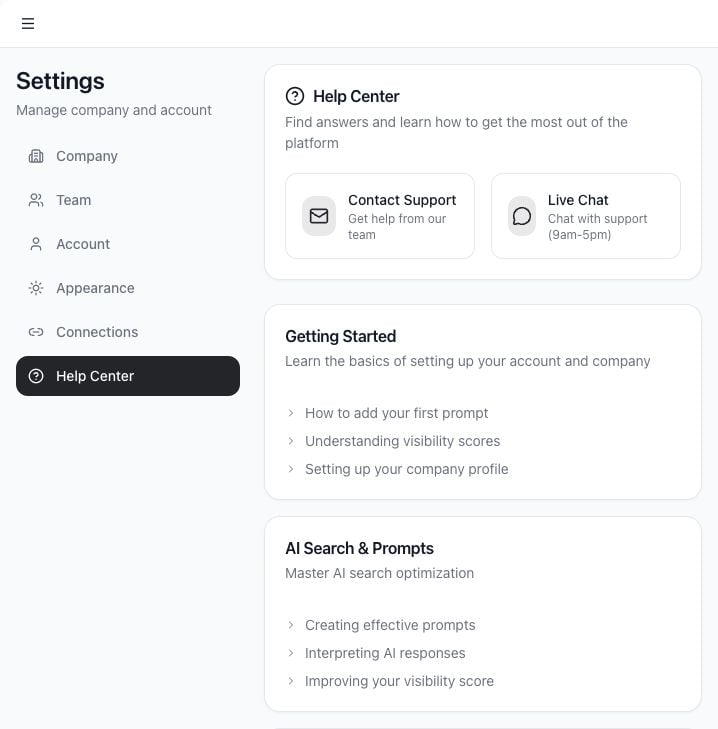 Use **Help Center** for support and guidance. If a workflow is blocked, include the workspace, page, prompt, and approximate time when contacting support.
## Permissions and connection safety
* Only users with the right workspace role can invite members, remove members, or change roles.
* Company details affect prompts, source classification, products, and location-aware checks.
* CMS credentials should be created for publishing only and rotated if a team member loses access.
* Always test a CMS connection before relying on it for publishing.
If a teammate cannot access a setting, confirm their workspace role before troubleshooting further.
Use **Help Center** for support and guidance. If a workflow is blocked, include the workspace, page, prompt, and approximate time when contacting support.
## Permissions and connection safety
* Only users with the right workspace role can invite members, remove members, or change roles.
* Company details affect prompts, source classification, products, and location-aware checks.
* CMS credentials should be created for publishing only and rotated if a team member loses access.
* Always test a CMS connection before relying on it for publishing.
If a teammate cannot access a setting, confirm their workspace role before troubleshooting further.