

Get started with Tamlr
Tamlr helps teams understand how visible their brand is in AI answers. You create or join a company workspace, add prompts that represent buyer questions, run tests across AI models, and review visibility, sentiment, citations, competitors, and search rankings.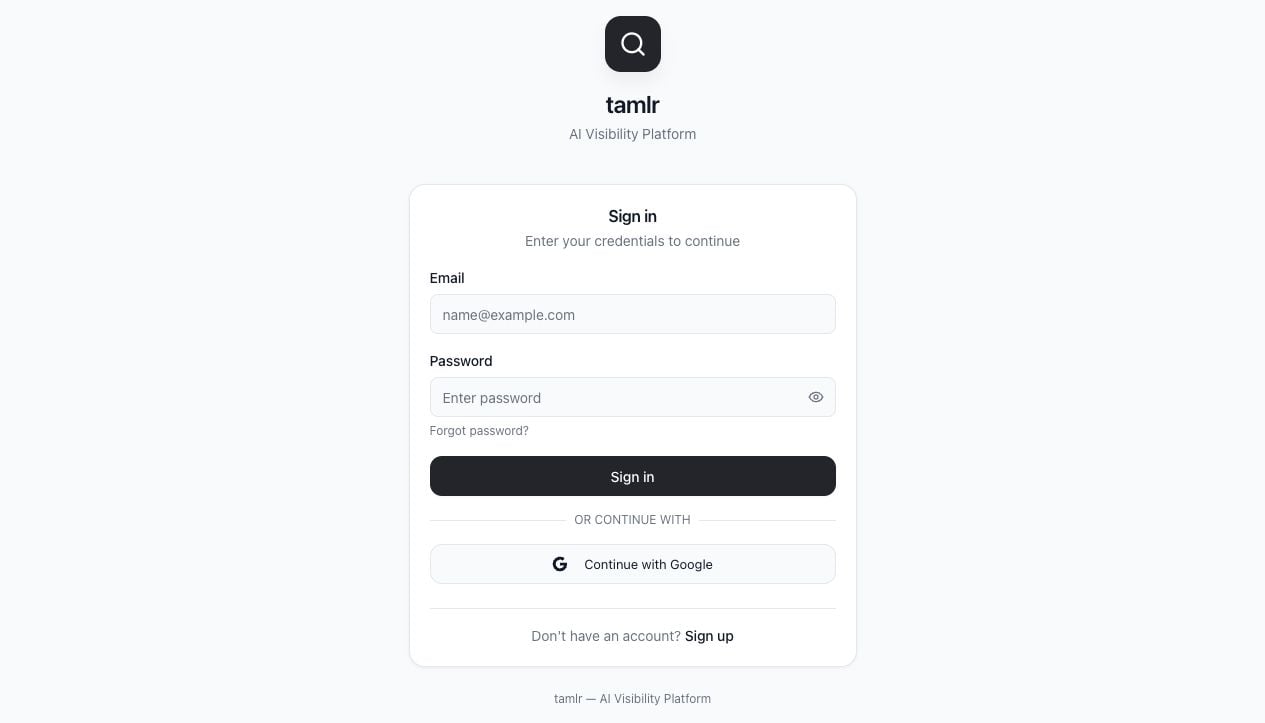
Who this is for
- Team members who need to monitor brand visibility in AI responses.
- Workspace admins who manage company details, team access, and CMS connections.
- Platform admins who manage plans, users, AI providers, and usage.
Sign in
- Open the Tamlr sign-in page.
- Enter your email and password.
- Select Sign in.
- Use Continue with Google if your account is configured for Google sign-in.
Reset your password

- Select the password reset option from the sign-in flow.
- Enter your account email.
- Follow the email instructions.
- Return to Tamlr and sign in with the new password.
Create or join a company
New users must belong to a company before they can use the workspace.- After sign-in, Tamlr checks whether your account has a company.
- If you have a pending invite, choose Join.
- If you need a new workspace, create a company with its name, industry, location, and website.
- Use Global when the brand operates globally and Google checks should not be restricted to one country.
Switch companies
Use the company switcher at the top of the sidebar to move between workspaces you belong to. Each company has its own prompts, products, competitors, sources, analytics, team members, and settings.Main navigation
After login, the sidebar gives access to:- Dashboard: visibility metrics and trends.
- AI Search: prompts and AI tests.
- Source Domains: sources cited by AI responses.
- Competitors: tracked and suggested competitor brands.
- Products: products, services, or offerings used in AI context.
- Settings: company profile, team, account, appearance, connections, and help.
- Admin: platform administration, visible only to superadmins.
What Tamlr remembers
- Your signed-in session, so you do not have to log in again every time.
- The company workspace you selected most recently.
- Which companies you can access, based on your team memberships and invites.
- Each workspace’s own prompts, products, competitors, sources, team, and settings.