

Manage settings, team members, and CMS connections
Settings controls the company profile, team access, personal account details, appearance, CMS connections, and help resources.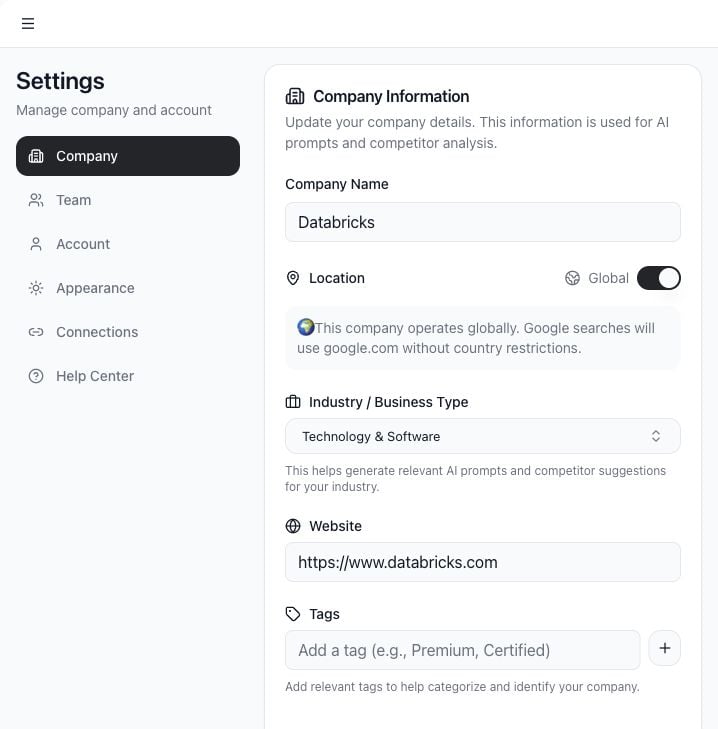
Use cases
- Update company name, location, industry, website, and brand tags.
- Invite team members.
- Change member roles.
- Update your profile.
- Switch theme appearance.
- Connect WordPress, Webflow, or HubSpot for publishing.
- Find help resources.
Company settings
Use Company to update business details. These fields influence prompt generation, competitor suggestions, AI context, and search location behavior. Important fields:- Company Name: the name Tamlr searches for in AI answers.
- Location: used for location-aware prompts and search checks.
- Global: use this when the company should not be tied to one country.
- Industry: helps Tamlr generate relevant prompts and competitor ideas.
- Website: used for source classification and product discovery.
- OEM or brand tags: optional context for industry-specific analysis.
Team settings
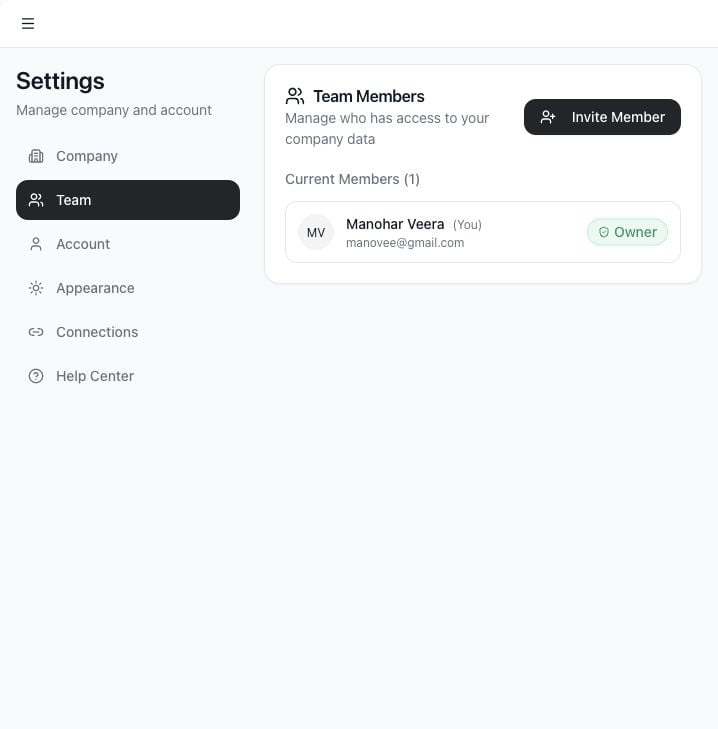
- Invite new members.
- Cancel pending invites.
- Extend an invite by resending it.
- Remove team members.
- Change member roles.
Account settings
Use Account to update your profile details and sign out.Appearance
Use Appearance to change the app theme.CMS connections
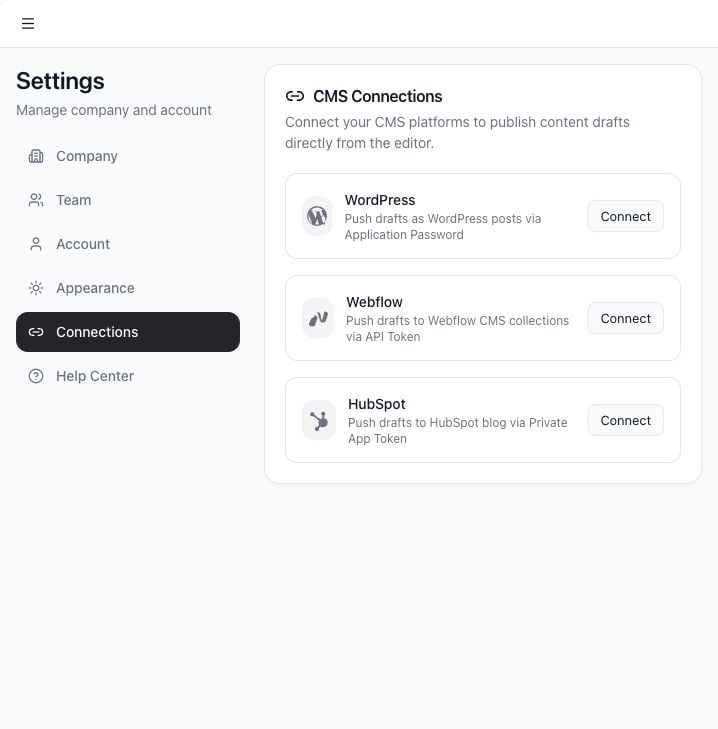
- WordPress via site URL, username, and application password.
- Webflow via API token, site ID, and collection ID.
- HubSpot via private app token.
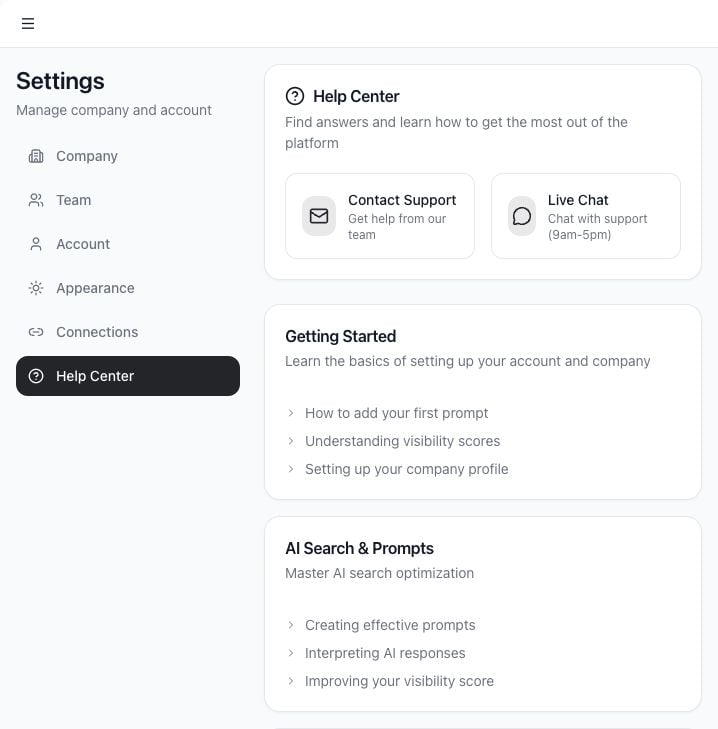
Help Center
Permissions and connection safety
- Only users with the right workspace role can invite members, remove members, or change roles.
- Company details affect prompts, source classification, products, and location-aware checks.
- CMS credentials should be created for publishing only and rotated if a team member loses access.
- Always test a CMS connection before relying on it for publishing.