

Manage products and offerings
Products represent the products, services, or offerings your company wants Tamlr to understand. Product data helps prompt strategy and AI analysis stay specific.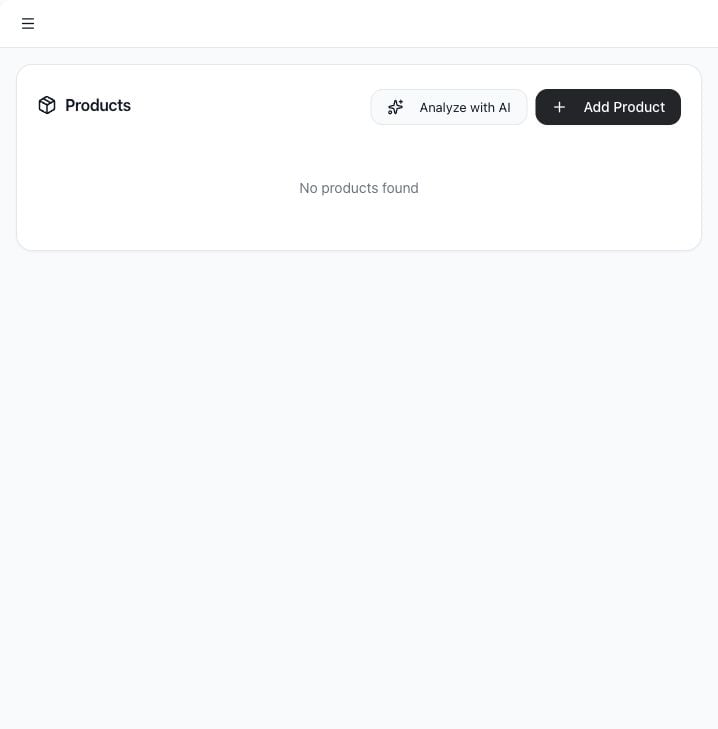
Use cases
- Add products or services manually.
- Use AI to discover offerings from a website.
- Edit product details.
- Remove outdated products.
- Give Tamlr more context for prompt generation and analysis.
Open Products
- Select Products in the sidebar.
- Review the current product list.
Add a product manually
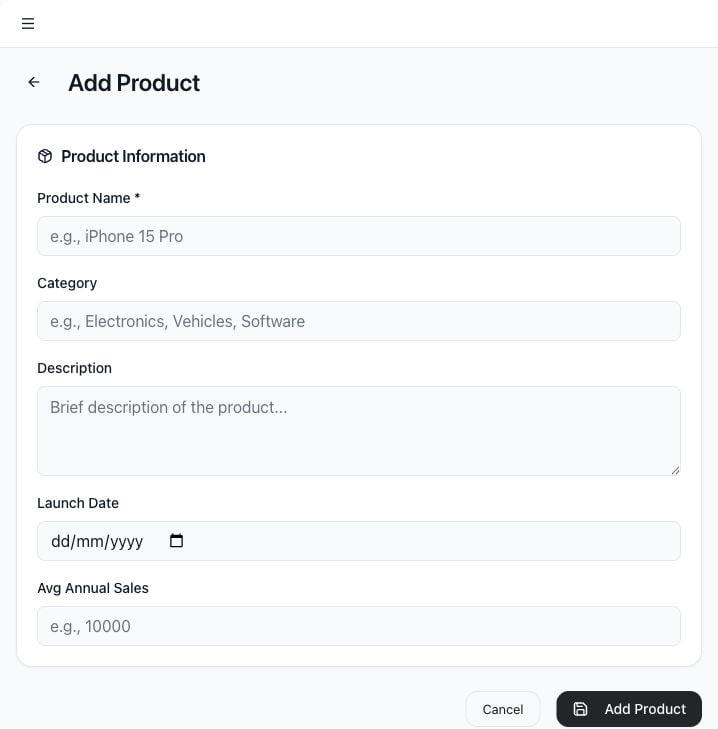
- Select Add Product.
- Enter Product Name.
- Add Category.
- Add a short Description.
- Add Launch Date if relevant.
- Add Avg Annual Sales if useful for prioritization.
- Select Add Product.
Analyze with AI
Use Analyze with AI to discover products from a website.- Select Analyze with AI.
- Confirm or enter the website URL.
- Wait for Tamlr to analyze the site.
- Review discovered products.
- Select which products to import.
- Import the selected products into the workspace.
Edit or delete products
Use the action buttons on a product row to edit details or delete the product. Deleting a product removes it from the product list and cannot be undone from the UI.How products help Tamlr
- Products give Tamlr better context for prompt ideas and analysis.
- Product names help teams monitor specific offerings, not just the overall brand.
- Categories make it easier to compare related products or services.
- Website analysis can save time, but manually reviewing imported products keeps the workspace accurate.